Table of Contents
![[Caution]](images/caution.png)
|
Caution |
|---|---|
|
stripShow's installation process has changed from earlier versions; if you've previously used a version prior to 2.0, please note these instructions carefully. |
Procedure 2.1. Installing the Plugin
-
First, you'll need a working WordPress installation. Installing and configuring WordPress is beyond the scope of this document, but help can be found at WordPress's website.
-
If you are upgrading from a previous version of stripShow, make sure you disable the plugin in WordPress's page before proceeding.
-
Upload the folder called
stripshowto your/wp-content/plugins/directory. -
Activate the plugin through the page in WordPress.
-
Choose a theme. stripShow 2.0 ships with a new framework theme, stripShow Sandbox. You can read more about its features in Chapter 7, Theming stripShow.
Also included is stripShow Classic, which is nearly identical to the original stripShow example theme included with version 1 of stripShow.
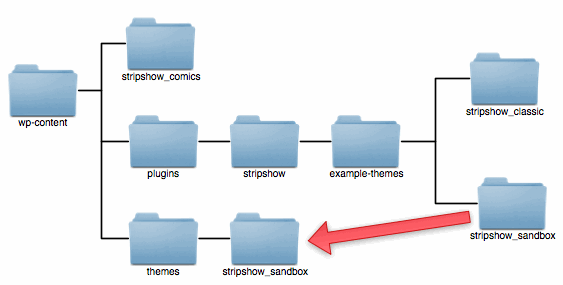
I recommend copying at least the folder called
stripshow_sandboxinto yourthemesfolder. This will allow you to create a child theme based on this framework. See Chapter 7, Theming stripShow. -
Create a folder to hold your comics. If such a folder already exists, take note of its location relative to your WordPress root, as you will need to enter that location on the stripShow Options page. In either case, this folder will need to be writeable by your webserver, in order to use stripShow's upload feature.
When you have created and copied all the folders you wish, your installation might look something like this:
-
Configure stripShow. The options you can set are detailed in the next chapter.