 # Postmark for WordPress CLI
## Installation
### Make sure WP CLI is installed
Check if WP CLI is already installed with this command:
`$ wp --info`
If it installed, you will see output like this:
`OS: Linux 4.10.0-42-generic #46~16.04.1-Ubuntu SMP Mon Dec 4 15:57:59 UTC 2017 x86_64
Shell: /usr/bin/zsh
PHP binary: /usr/bin/php
PHP version: 7.1.12-1+ubuntu16.04.1+deb.sury.org+1
php.ini used: /etc/php/7.1/cli/php.ini
WP-CLI root dir: /home/wp-cli/.wp-cli
WP-CLI packages dir: /home/wp-cli/.wp-cli/packages/
WP-CLI global config: /home/wp-cli/.wp-cli/config.yml
WP-CLI project config:
WP-CLI version: 1.5.0`
If WP CLI is not yet installed, install it using these steps:
https://make.wordpress.org/cli/handbook/installing/
### To install the Postmark for WordPress CLI:
`$ wp package install https://github.com/wildbit/postmark-wordpress-cli.git`
Run `$ wp package list` to confirm the Postmark package has been added.
Note: The Postmark for WordPress plugin must be installed, activated, and have a Server API Token set in the plugin settings to use the Postmark for WordPress CLI commands.
### Add Postmark Account API Token to wp-config.php
To execute account level commands, such as adding a domain to your account or creating a server, this line to `wp-config.php`:
`/** Postmark Account API Token */`
`define( 'POSTMARK_ACCOUNT_TOKEN', '0bc946ec-c1d3-4169-b279-4d019bdff429' );`
## Usage Examples
### Outbound message search
`$ wp postmark outbound_message_search`
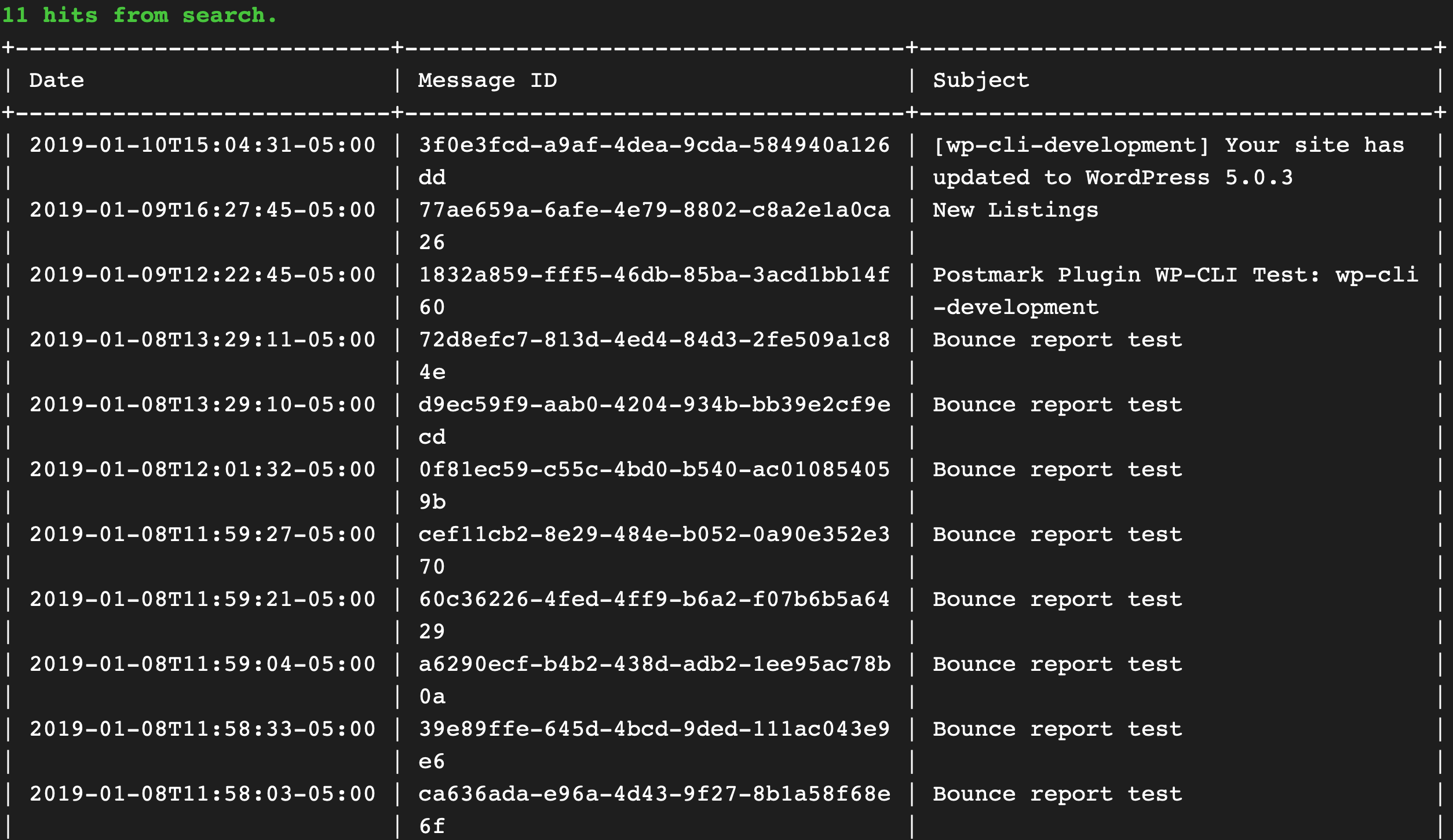
The outbound message search command will return information on the number of results, along with a formatted table showing the date and time the messages were sent, message ids, and subjects.
# Postmark for WordPress CLI
## Installation
### Make sure WP CLI is installed
Check if WP CLI is already installed with this command:
`$ wp --info`
If it installed, you will see output like this:
`OS: Linux 4.10.0-42-generic #46~16.04.1-Ubuntu SMP Mon Dec 4 15:57:59 UTC 2017 x86_64
Shell: /usr/bin/zsh
PHP binary: /usr/bin/php
PHP version: 7.1.12-1+ubuntu16.04.1+deb.sury.org+1
php.ini used: /etc/php/7.1/cli/php.ini
WP-CLI root dir: /home/wp-cli/.wp-cli
WP-CLI packages dir: /home/wp-cli/.wp-cli/packages/
WP-CLI global config: /home/wp-cli/.wp-cli/config.yml
WP-CLI project config:
WP-CLI version: 1.5.0`
If WP CLI is not yet installed, install it using these steps:
https://make.wordpress.org/cli/handbook/installing/
### To install the Postmark for WordPress CLI:
`$ wp package install https://github.com/wildbit/postmark-wordpress-cli.git`
Run `$ wp package list` to confirm the Postmark package has been added.
Note: The Postmark for WordPress plugin must be installed, activated, and have a Server API Token set in the plugin settings to use the Postmark for WordPress CLI commands.
### Add Postmark Account API Token to wp-config.php
To execute account level commands, such as adding a domain to your account or creating a server, this line to `wp-config.php`:
`/** Postmark Account API Token */`
`define( 'POSTMARK_ACCOUNT_TOKEN', '0bc946ec-c1d3-4169-b279-4d019bdff429' );`
## Usage Examples
### Outbound message search
`$ wp postmark outbound_message_search`
The outbound message search command will return information on the number of results, along with a formatted table showing the date and time the messages were sent, message ids, and subjects.
 ### Outbound message details
To get more information on a particular outbound message, run:
`$ wp postmark get_outbound_message_details `
Important email information such as the subject, status (sent or queued), date, tracking information, and attachment information will be displayed. A table will also show the results and details for each recipient.
### Outbound message details
To get more information on a particular outbound message, run:
`$ wp postmark get_outbound_message_details `
Important email information such as the subject, status (sent or queued), date, tracking information, and attachment information will be displayed. A table will also show the results and details for each recipient.
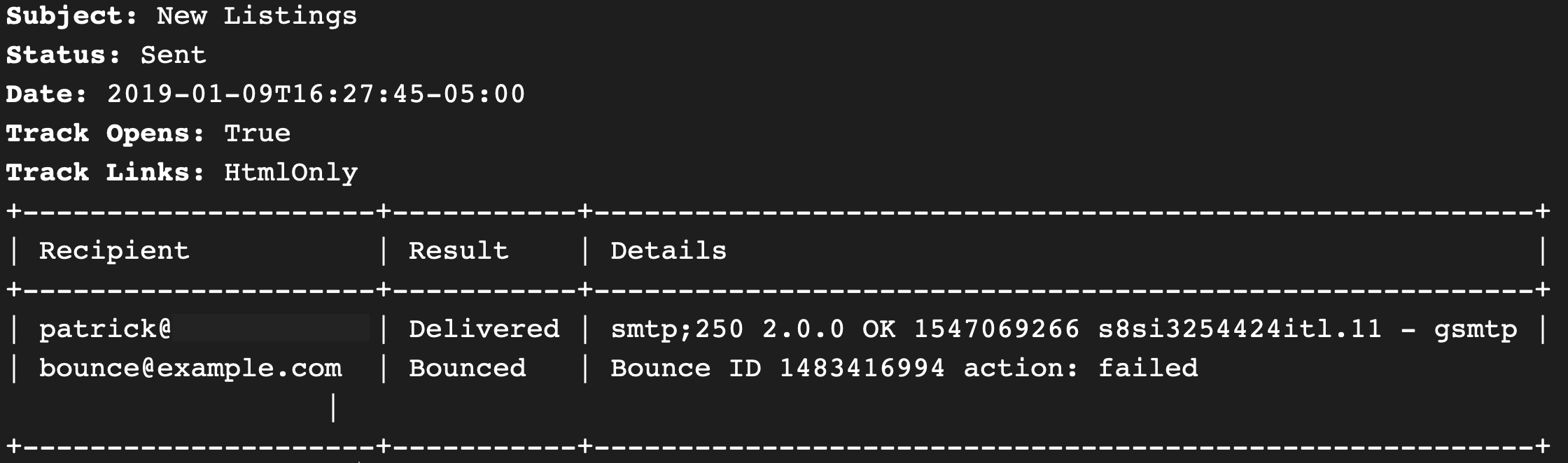 The bounce id for bounces will be included, so that you can reactivate the bounced address, if necessary, with the `activate_bounce` command:
`$ wp postmark activate_bounce `
### View bounces
### Statistics overview
`wp postmark get_outbound_overview`
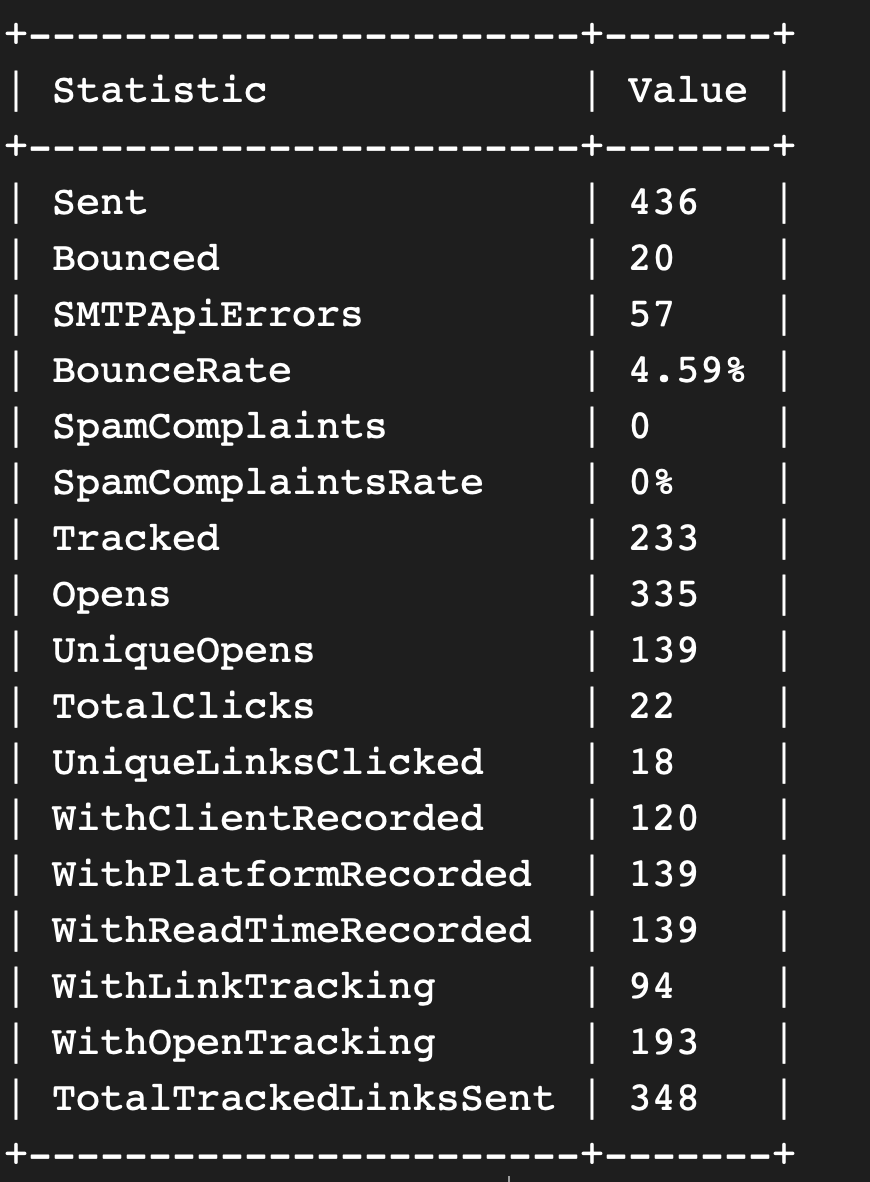
Outbound overview will display a table of statistics for your sending. By default it will include statistics for all sending from your server. Narrow down the stats using `--tag`, `--fromdate`, or `--todate` associative arguments.
The bounce id for bounces will be included, so that you can reactivate the bounced address, if necessary, with the `activate_bounce` command:
`$ wp postmark activate_bounce `
### View bounces
### Statistics overview
`wp postmark get_outbound_overview`
Outbound overview will display a table of statistics for your sending. By default it will include statistics for all sending from your server. Narrow down the stats using `--tag`, `--fromdate`, or `--todate` associative arguments.
 Tip: Want a CSV file of the stats? Use the `--csv` option to have the stats output into a csv file in your Postmark for WordPress plugin directory.
### What commands are available?
Most Postmark API calls are available as commands.
Run the following to see a list of available command descriptions:
`$ wp help postmark`
And this to see details for available arguments for a command:
`$ wp help postmark `
## Additional Resources
https://wordpress.org/plugins/postmark-approved-wordpress-plugin/
https://developer.wordpress.org/cli/
## Changelog
### v1.0
Tip: Want a CSV file of the stats? Use the `--csv` option to have the stats output into a csv file in your Postmark for WordPress plugin directory.
### What commands are available?
Most Postmark API calls are available as commands.
Run the following to see a list of available command descriptions:
`$ wp help postmark`
And this to see details for available arguments for a command:
`$ wp help postmark `
## Additional Resources
https://wordpress.org/plugins/postmark-approved-wordpress-plugin/
https://developer.wordpress.org/cli/
## Changelog
### v1.0