WordPress GCM Plugin
- created: 04/02/2014
- latest update: 10/13/2014
- by: Deniz Celebi and Pixelart Web and App Development
- wordpress.org/plugins/wp
How To Start
Before we can start, you need an API Key. If you already know, hot to obtain one, jump to 7, else follow these steps:
1. You need a Google Account. If you already have one, go to the Google Api Console, and login. Create a new Project if you haven't already.
2. Now select your Project and go to "APIs & auth" > "APIs" and activate "Google Cloud Messaging for Android"

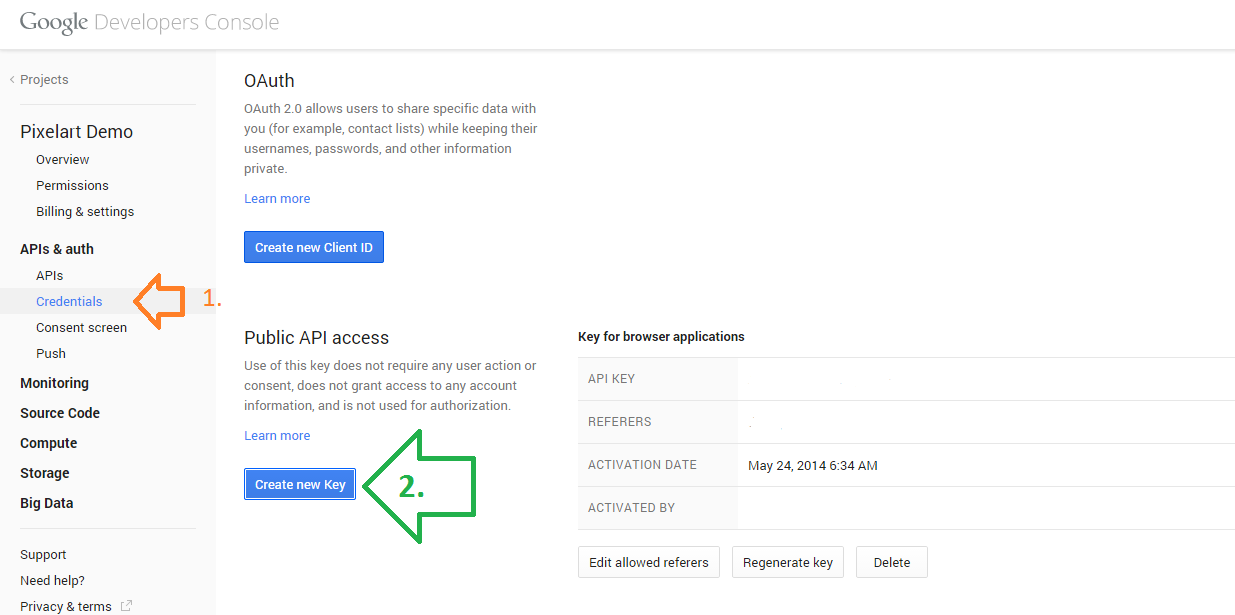
3. No you need youir API Key. Tp get one navigate to "APIs &auth" > "Credentials". Then click on "Create new Key".
4. Now this step is very important: Click on "Browser key", not on "Server key".
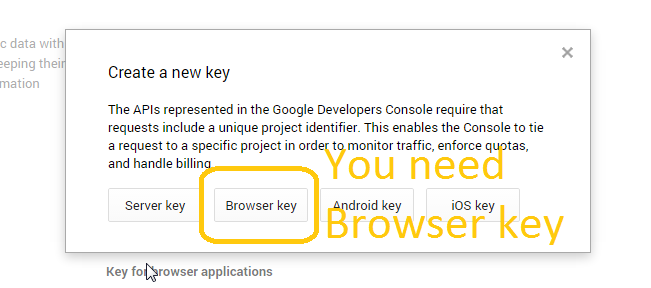
5. Just enter your Domain like below an press "Create"

6. Now you will see you Api Key. Copy the line "API KEY" highlited below. This is your API Key

7. Now open your WordPress Admin Backend, on go to "GCM" > "Settings". Enter in the Api Key Field your Api Key and press "Save Changes"

8. Your done!
The Message Types
Now the Plugin comes with 3 different Message Types out of the box.
The first one you already know, its the normal "message" one. The two others are "new_post" and "update".
As GCM sends Messages in Json format it needs two attributes. The first Parameter ist the message type, the second one is the data.
For example, if the message type is "message" it will include the data "message", containing the message.
But if the message type is "update" or "new_post", it will include the data: "post-title; post-url; post-id; post_author;".
So if a new post will be published, it automatically sends a GCM-Message containing the post title, url, id and author.

Custom Message Type
If you want to Create your custom Plugin Message Type and Message, all you need is to add a function called xy:
function xy () {$messageData = "Hello wolrd!";$messageType = "myType";px_sendGCM($messageData, $messageType);}
License
Info
WordPress Plugin Page : http://wordpress.org/plugins/wp-gcm
WordPress Plugin Support: https://wordpress.org/support/plugin/wp-gcm
Plugin Homepage: http://pixelartdev.com/referenz/wp-google-cloud-messaging-plugin (German)
Please Rate at WordPress Plugin Page!
Donate if you are happy with my plugin and motivate me for more!