User Guide
Version 2.0
Copyright © 2009 Brad Hawkins
stripShow is free software: you can redistribute it and/or modify it under the terms of the GNU General Public License as published by the Free Software Foundation, either version 3 of the License, or (at your option) any later version.
stripShow is distributed in the hope that it will be useful, but WITHOUT ANY WARRANTY; without even the implied warranty of MERCHANTABILITY or FITNESS FOR A PARTICULAR PURPOSE. See the GNU General Public License for more details.
You should have received a copy of the GNU General Public License along with stripShow. If not, see http://www.gnu.org/licenses/.
Abstract
stripShow is a WordPress plugin for creating and maintaining a webcomics archive.
Table of Contents
- 1. Introduction
- 2. Installation
- 3. stripShow Options
- 4. stripShow Comics
- 5. Storylines
- 6. Transcripts
- 7. Theming stripShow
- 8. Frequently Asked Questions
- A. Template Tags
- first_comic — display a link to the first comic
- previous_comic — display a link to the previous comic
- next_comic — display a link to the next comic
- last_comic — display a link to the last comic
- random_comic_link — display a like to a random comic.
- first_comic_url — get the URL of the first comic
- previous_comic_url — get the URL of the previous comic
- next_comic_url — get the URL of the next comic
- last_comic_url — get the URL of the last comic
- random_comic_url — get the URL of a random comic
- show_comic — display the current comic file(s)
- show_comic_for_date — show a particular date's comics
- show_previous_comics — display a series of comics that precede the current comic
- show_next_comics — display a series of comics that follow the current comic
- recent_comics — display a list of the most recent comic posts
- recent_noncomics — display a list of the most recent non-comic blog posts
- comic_archive_list — display a list of all comics in the archive
- comic_archive_table — display a table of all comics in the archive
- comic_calendar — display a calendar of comics
- has_transcript — determine whether comic has a transcript
- transcript_toggler — display a link that toggles display of comic transcript
- the_transcript — display the comic's transcript
- storyline_dropdown — display an HTML drop-down menu containing all the storylines in the archive
- storyline_list — display a list of storylines
- the_story — display the name of the current story
- storyline_start_url — display the URL of the first comic in the current storyline
- storyline_end_url — display the URL of the last comic in the current storyline
- story_part — display the current part of the current storyline
- story_parts — display the number of comics in the current story
- is_comic — determine whether the current post is a comic
- B. PHP Date Codes
Table of Contents
So you want to produce a webcomic, and you've heard other creators rave about how WordPress is the way to go. But now you need a software package that can handle the drudgery of generating the blog posts and uploading the files, as well as keeping the whole thing automated. This is where stripShow comes in.
stripShow will allow the webcomic creator to upload his or her comics using a handy WordPress admin interface, create custom themes that incorporate comic-specific template tags to navigate between comics, group comics into hierarchical storylines, and even enter searchable transcripts of your comics to make finding particular strips easy.
stripShow is very simple. Each comic in stripShow is a blog post. Each comic post can be associated with one or more comic files, which can be graphics like GIF or JPEG, or even HTML or Flash files. In addition to posting comics, you can maintain a regular old blog using the same WordPress system.
Attractive WordPress admin interface for uploading comics.
Supports bulk upload of comics files.
Supports bulk import of comics files already on your server.
Support for multiple comic file formats, including GIF, PNG, JPEG, Flash, and HTML.
Support for searchable transcripts within comic posts.
Group comics into nested storylines.
Comic images can be shown in RSS feeds.
Support for traditional date-based comic filenames, or custom filenames.
New comic-specific sidebar widgets.
Full-featured theme framework for creating beautiful site themes.
Table of Contents
![[Caution]](images/caution.png) | Caution |
|---|---|
stripShow's installation process has changed from earlier versions; if you've previously used a version prior to 2.0, please note these instructions carefully. |
Which method you use to install stripShow largely depends on what version of WordPress you're using. WordPress 2.7 includes some exciting new options for finding and installing plugins.
Procedure 2.1. Installing the Plugin
First, you'll need a working WordPress installation. Installing and configuring WordPress is beyond the scope of this document, but help can be found at WordPress's website.
If you are upgrading from a previous version of stripShow, make sure you disable the plugin in WordPress's page before proceeding.
Upload the folder called
stripshowto your/wp-content/plugins/directory.Activate the plugin through the page in WordPress.
Choose a theme. stripShow 2.0 ships with a new framework theme, stripShow Sandbox. You can read more about its features in Chapter 7, Theming stripShow.
Also included is stripShow Classic, which is nearly identical to the original stripShow example theme included with version 1 of stripShow.
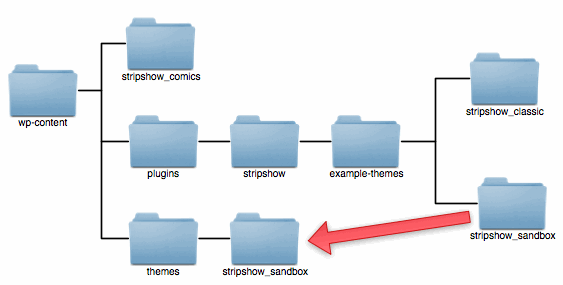
I recommend copying at least the folder called
stripshow_sandboxinto yourthemesfolder. This will allow you to create a child theme based on this framework. See Chapter 7, Theming stripShow.Create a folder to hold your comics. If such a folder already exists, take note of its location relative to your WordPress root, as you will need to enter that location on the stripShow Options page. In either case, this folder will need to be writeable by your webserver, in order to use stripShow's upload feature.
When you have created and copied all the folders you wish, your installation might look something like this:
Configure stripShow. The options you can set are detailed in the next chapter.
stripShow uses the familiar WordPress admin panel to set its configuration options. From your WordPress dashboard, select the menu, then the menu item. This will take you to the page.
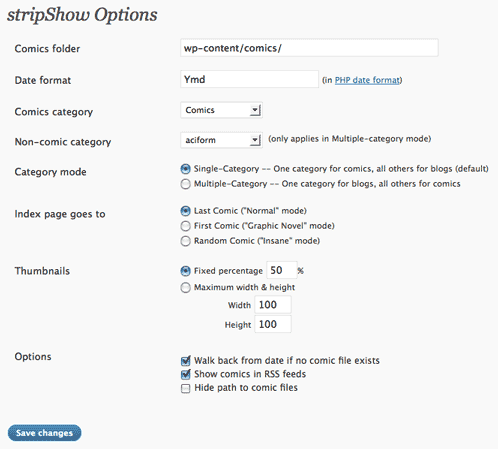
The options you can configure from this page are:
- Comics folder
Tells stripShow where your comic files will be located. This is relative to your WordPress root, so if the full path to your comics folder is
/home/bob/public_html/WordPress/comics, you would just entercomicshere.- Date format
stripShow allows you to specify what date format you'll be using to name date-based comics. The string you enter here uses the same format as the PHP date() function. For instance, a date string of
Ymdwould match a file called20080901.gif, while a date string ofY-m-dwould match a file called2008-09-01.gif. That latter format is the default in ComicPress, so if you're a ComicPress user, that's probably what your comics are already called. All the characters that can be used as date codes can be found in Appendix B, PHP Date Codes.Caution I recommend against using any of the formatting codes that do not add leading zeroes to dates, such as
jorn. Some functions in stripShow extract dates from filenames based on their lengths, which can result in incorrect dates being returned, if dates between 1 and 9 are not padded with a leading zero.- Comics category
This option determines which WordPress category you'll be using for comics. stripShow has two operating modes when it comes to categories: Single-category mode, which is the default, wherein all comics are stored in one single category, and a post any other category is considered a blog post, and Multiple-category mode, wherein only one category is used for blog posts and all others are considered to be comics. This is the default behavior of ComicPress, and this option was created for the benefit of people migrating from that platform.
- Non-comics category
If Multiple-category mode is chosen below, this is the category for non-comic blog posts.
- Category mode
Determines which of the two operating modes (as listed above) is in effect.
- Index Page
By default, the index page of your stripShow site will show the most recent comic entered, which is standard for episodic comics that are still being updated. However, what if you've posted your entire 200-page graphic novel online, with each comic post representing a page? You don't want people starting at the end, so you can set this option to
First Comicand the index page will take them to the first page. In addition, there is aRandom Comicwhich makes your index page unpredictable and goofy.- Walk back from date if no comic file exists
Usually, if a comic post has neither a custom comic file attached to it nor a file with the proper date in the comics directory, the show_comic template tag will "walk back" through the files that do exist until it finds the most recent comic file prior to that date. It will then show whatever file it finds. You can turn this feature off and on using this option. Default is
ON.- Show comics in RSS feeds
By default, stripShow adds the comic to the RSS feed for comic posts. This option allows you to enable or disable this feature.
- Hide path to comic files
This option allows you to disguise the path where your comics are located. Usually, anyone reading the comic can view the source of the site and see the path to your comics. If for any reason you wish to disguise this path, select this option, and stripShow will mask it for you.
This option comes with some restrictions, however:
You must have the GD extension enabled on your copy of PHP. If you don't, this option will be unavailable.
You may only use one comic file per post. If more than one file is found, only the first one will be used.
The comic file for the post must be in GIF, PNG, or JPEG format. HTML, text, and Flash files are not supported.
Animated GIFs will not be animated. Only the first frame will be shown.
Table of Contents
Just like any other WordPress blog, a stripShow archive is made up of posts. These posts are the same as other posts, integrated into the WordPress database. They are just like your blog, the only difference being that they are in a category assigned to comics (or, in multiple-category mode, they are not in a category assigned to blog posts).
stripShow comic posts differ from other blog posts in another way; each comic post needs to be accompanied by a comic file. Usually a graphic, this file is one actual comic strip[1] itself.
However, they don't have to be graphical. A "comic file" in stripShow can be a graphic, or text, or animated Flash video[2]. stripShow supports the following file formats:
GIF (.gif)
JPEG (.jpg or .jpeg)
PNG (.png)
Flash (.swf)
HTML (.html or .htm)
Text (.txt)
These files are stored in the comics directory, as specified on the stripShow Options page.
More than one file can be related to any given comic post. File types can be mixed, so you can have a GIF file followed by an HTML file, followed by a PNG, for example. Image files are enclosed in an <img> tag. HTML and text files are simply copied verbatim.[3]
There are two kinds of files that stripShow will look for: Files with date-based filenames, and files with custom filenames specified by the post itself.
If the comic post has no comic_file custom field attached, then stripShow looks in the comics directory (as set in Options) for any files that match the specified date format (also set in Options). For example, if the date format is "Ymd," stripShow will find files that begin with dates in that format. The following are all filenames that this format will match:
20080828.gif20080828a.png20080101-you-can-add-whatever-you-like-as-long-as-it-starts-with-a-date.jpg
As you can see, you can append whatever you want to the filename, as long as you retain the extension and the filename begins with a date. If more than one file exists for a given date, then that extra information is used to determine in what order the files should be displayed -- 20080901a.gif comes before 20080901b.gif, for example.
If no files exist that bear the desired date, stripShow will "step backward" one day at a time until it finds one. For example, if the comic's date is September 1, 2008, and stripShow cannot find a file whose name begins with "20080901", but there is a file called 20080831.gif, stripShow will display that file. However, stripShow will only step back ten years, to prevent it from getting into an infinite loop.
[4]
Date-based comic filenames are something of a webcomics tradition, but they have their limitations. What if you want to post two different comics on the same day, for instance?
Beginning with version 2.0, stripShow can take advantage of WordPress's capability to store custom metadata in each post. If you add a custom field called comic_file to a comic post, stripShow will display the file specified rather than a date-based file. Multiple custom fields (all with the same key, comic_file) can be used, so multiple files can be associated with the same date.
| Caution |
|---|---|
Just like date-based comic files, custom files are also displayed in alphabetical order, no matter what order they're entered into WordPress. |
All posts created using stripShow's Add Comic page have a custom_comic field added automatically.
When creating a comic post in stripShow, you do not need to insert the comics in your post itself; stripShow finds the appropriate comics when it displays the post.
There are four methods for entering comics:
Back in the old days of webcomics production on WordPress, the way to get a comic file associated with a blog post was to handle them both separately; you would create a comic file named in your chosen date format (such as 20090213.gif), then upload it using FTP to your sever. Then you'd go to WordPress's page and enter a blog post, making sure to set the correct category and date. All in all, a big waste of time.
A more convenient way to enter comics into your archive is to use stripShow's page. This page is designed to resemble WordPress's page, including a rich text editor.
 |
From this page, you can enter a title for that day's comic, a blog post to accompany the comic, and upload one or more comic files. You can enter or select tags for your post, just as in the normal WordPress page. Any posts entered in this fashion wil automatically be assigned the category you've selected for comics on the page.
![[Note]](images/note.png) | Note |
|---|---|
Please note the button next to the upload field. This allows you to upload more than one file at once, but each file will be associated with the same comic post unless you select . |
More than one comic can be uploaded at once. Selecting from the box allows you to create a new post for each of the files you're uploading.
Some restrictions apply. At present, stripShow does not allow you to customize the title or content of the posts you're entering, beyond some basic date-related functions (see Date Replacement, below). Bulk upload can be time-saving or time-consuming, depending on the extent to which you like to have your comics differentiated from one another.
In addition, because there's no opportunity to specify the post date for each comic you're uploading, the comic files must include, at the beginning of their filename, a date. This date must conform to the date format set in .
All files uploaded using this method will be associated with their posts using the comic_file metadata (see the section called “Custom comic files”).
If you've already uploaded a collection of comic files, stripShow has an option to import them as a group into the WordPress blog.
This option has the same restrictions as . Comics must be named with dates, and no customization of the title or content is possible beyond that mentioned in Date Replacement.
All files found in your comic folder (also specified in ) that have properly-formatted dates in their filenames will be imported, unless that file is already associated with a comic post. Multiple files that begin with the same date will be imported aand attached to one post.
WordPress gaves us the ability to include custom metadata in posts. stripShow makes use of this metadata in several ways. We've already seen how you can use metadata to specify custom comic files. There are several other custom fields which can be used:
- comic_title
Anything placed in this field will show up in the ALT attribute of your comic images. It is also placed in the TITLE attribute, causing this text to appear as a tooltip when the reader hovers over the image with his or her mouse. Some comics (such as xkcd make extensive use of tooltips to provide additional information about the comics. While WordPress-based comics have a whole blog entry to serve that purpose, some may also wish to use tooltips.
[1] "Strip" is such a passé term, don't you think? This is the internet; comics can be long strips, square blocks, random zigzags... we're working on spheres. So I won't use the word "strip" to mean a comic... uh, except of course for the name of the product. Damn.
[2] Flash support is pretty rudimentary in stripShow; I'm looking into ways to make it more flexible. If you need a particular feature, please let me know.
[3] PHP in these files is not parsed, for security reasons.
[4] Even this ten-year restriction can greatly decrease performance on some webservers. For best results, ensure that all of your comic posts have at least one comic file associated with them.
Table of Contents
Often, webcomics are organized in some way -- whether into chapters, volumes, etc. In stripShow, any such organizational unit is called a storyline. A storyline is simply a chronological grouping of comics.
A powerful feature of stripShow is the ability not only to keep track of which comics belong in which storylines, but also to manage nested storylines. This means that any storyline can contain storylines within it, and those storylines can contain storylines, to a theoretically indefinite level.[5]
Storylines in stripShow are managed from your WordPress admin page. Click on in the main menu, then select . This takes you to the Storylines management page.

On this page, you can create, edit, or delete storylines. Storylines are really very simple to enter -- they have a name and a start date, and perhaps a "parent" storyline (remember, they can be nested). That's it. stripShow automatically orders stories by start date, so you don't have to enter them in any particular order.
From this same page, you can edit or delete storylines. To edit a storyline, click on that storyline's row. Its information will appear above. The changes to . Simply make your changes and hit when finished.
Likewise, you delete a storyline by clicking on that storyline's row. You will be prompted for confirmation, and then the storyline will be deleted. Deleting a storyline does not affect your comics in any way.
Storylines can be used in a number of ways. The most common is to create a dropdown menu of all stories using the storyline_dropdown template tag. See the Template Tags section for additional storyline-related tags.
[5] "Theoretically" being the operative word here... only a few levels have been tested, and adding too many levels may slow stripShow's performance on your web server.
Table of Contents
The vast majority of webcomics are image files, that you've painstakingly created in Photoshop, the GIMP, or something similar. Humans can read the dialogue in your strip, but machines can't. What if you want readers to be able to search for a particular strip by a piece of dialogue?
stripShow allows you to add transcripts to every post which expose the content of your post to the world of search engines. These transcripts do not appear when viewing the post by default (but can be made to, using template tags), but are part of the post for purposes of searching. You can, for example, search for a character's name or piece of dialog using WordPress's built-in search engine (or, if you've enabled notification in WordPress, external blog search engines like Technorati.
To add a transcript to your blog post, simply type whatever text you normally would into the blog entry, then add your transcript in the following format:
Example 6.1. Transcript Markup
{{transcript}}
		{{character=Bob}}Hey, how's it going?{{/character}}
		{{character=Jim}}Hey, what's up?{{/character}}
		{{description}}Bob hauls off and decks Jim.{{/description}}
		{{arbitrary}}I just made this tag up. It's just that easy!{{/arbitrary}}
{{/transcript}}
What tags exist in this exciting new markup language? Well, anything you want, really. As you can see, the character tag has a parameter -- the character's name, which comes after the equals sign.
In your template, you insert a transcript through the use of template tags. The conditional tag has_transcript can be used to ensure that the transcript toggler is only shown if the post itself has a transcript. Transcript tags should only be used inside WordPress's loop.
Example 6.2. Transcript PHP
<?php
if(has_transcript()) {  transcript_toggler();
  the_transcript();
  }
?>
}
?>This code consists of three parts:
This conditional tag tells stripShow only to display any of the following if there actually is a transcript for this post. | |
This code generates a link that, when clicked, shows or hides the transcript code. By default, the transcript starts out hidden. See transcript_toggler. | |
This code generates the transcript itself, as an HTML table. See transcript_toggler. |
The code in Example 6.1, “Transcript Markup” would produce the following HTML:
Example 6.3. Transcript HTML Output
<table<td class="transcript_character">Bob</td>
<td class="transcript_dialogue">Hey, how's it going?</td> </tr> <tr class="transcript_line"> <td class="transcript_character">Jim</td> <td class="transcript_dialogue">Hey, what's up?</td> </tr> <tr class="transcript_line"> <td colspan="2" class="transcript_description">Bob hauls off and decks Jim.</td>
</tr> <tr class="transcript_line"> <td colspan="2" class="transcript_arbitrary">I just made this tag up. It's just that easy!</td>
</tr> </table>
By default, the transcript is displayed as an HTML table. | |
The entire table is given the CSS class | |
The transcript for each post is given a unique CSS ID in the form | |
Each line in the transcript is given the CSS class | |
Most rows in a transcript table have two columns: one for the character name, the other for the dialogue. These are given CSS classes of | |
A line of description contains only one column, which is given the CSS class | |
If you've put a self-created tag in your transcript markup, this is treated just like description, with one column per row, and given a class name |
As you can see, the output is an HTML table. This is the default behavior, but using arguments to the the_transcript
template tag, you can change this to use divs and spans instead. See the_transcript for details. The same CSS classes are used when the transcript is shown as a div.
Table of Contents
stripShow's powerful organization and comic-entry features are only good for so much. You will also need a means of presenting your comic to the people; you need a theme.
Nearly all webcomics creators will want to have a custom theme for their site. You don't want to run the risk of having a site that looks identical to some other comic out there. But having a solid starting point is essential, which is why stripShow includes a theme framework. Whereas previous versions of stripShow included an example theme which was based on ComicPress, with a lot of my own additions, stripShow 2.0 includes a new theme framework called stripShow Sandbox.
stripShow Sandbox is, as the name implies, based on Sandbox, one of the best-known theme frameworks for WordPress.[6] stripShow Sandbox provides a robust PHP and HTML framework for your pages, which can then be fully styled using CSS.
stripShow Sandbox can be found in your stripShow installation in the folder example-themes. In Chapter 2, Installation, I recommended that you copy this theme (renaming it in the process) into your themes folder. Keep the original around in case one of the changes you make messes things up beyond repair. Never be afraid to mess things up beyond repair, it's part of what makes web design fun.
The stripShow Sandbox theme comes with several different layout options.
Dropdown navigation menu, linking to all WordPress pages, with support for parent and child pages
Context-aware classes added to
bodyandpostelements.Four widget-ready areas -- two sidebars, a sidebar just for comics, and a header support area for things like advertisements.
Highly-configurable "action zones" that you can use to add content to your page without touching the core template files.
Works with stripShow's comic-orientation metadata to automatically format your page based on whether the comic is horizontal or vertical in form. This allows you to mix comic shapes in a single archive without sacrificing attractive layout for one or the other.
stripShow Sandbox includes some CSS presentation information to illustrate how the various theme elements can be styled.
Rest assured: the template is not designed to be used on its own. Instead, the theme is designed to be extended through the use of child themes. Child themes are a feature available in WordPress 2.7 and later[7] wherein a full theme can be used as a template (or "parent") to a stripped-down "child" theme that may contain as little as a single style.css. The child theme usually transforms the look of the parent theme using nothing more than CSS, but as of WordPress 2.7, child themes can also contain replacements for template files such as index.php. If WordPress doesn't find a needed file in the child theme's folder, it uses the one from the parent's. This enables child themes to be quite lightweight.
One major advantage of using child themes is that, if you merely use CSS to style the existing parent, that parent can be updated without having to search for and merge changes into your theme. Of course, if you add your own PHP files into your child, any changes made to that file by updating the parent will not apply to your theme.
To create a child theme, you simply create a new folder in wp-content/themes, just like any other theme. The only file you need to create within that folder is styles.css, but you'll almost certainly want to add your own graphics too, so create an images folder as well.
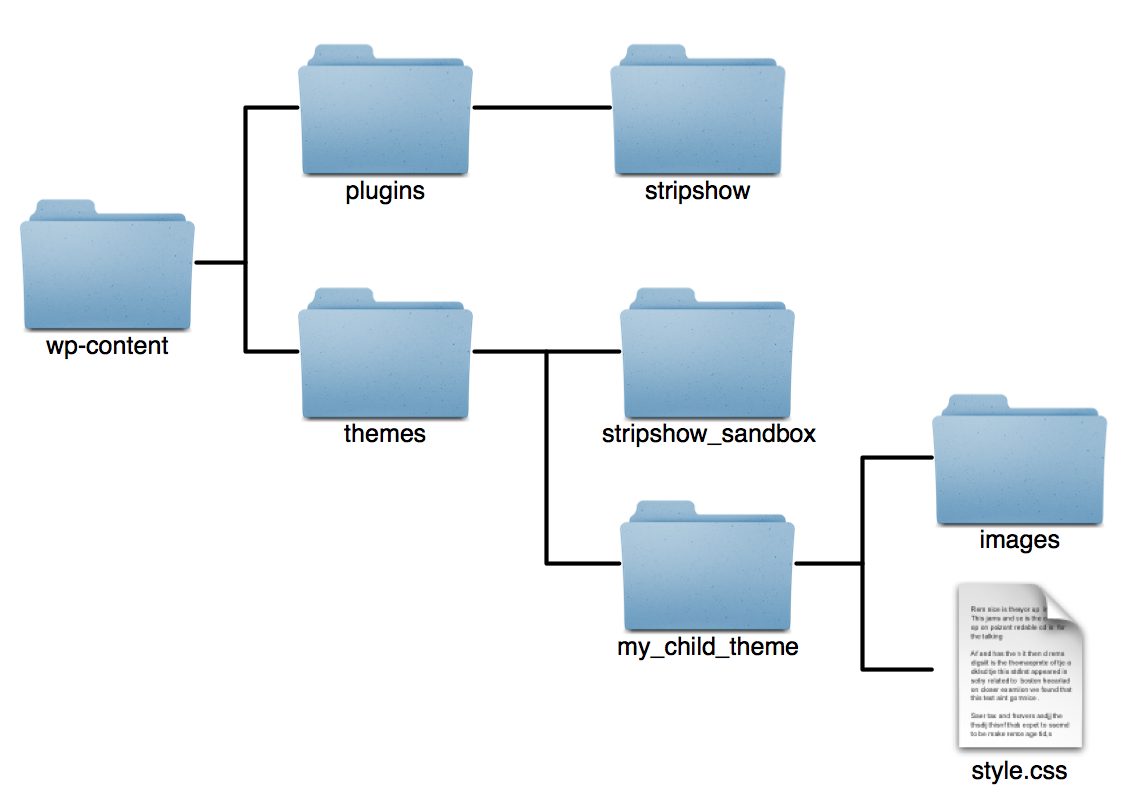
Your style.css, at its most basic, contains the following
Example 7.1. style.css File for Child Theme
/*
THEME NAME: My Child Theme
THEME URI: http://www.mygreatwebcomic.com
DESCRIPTION: Child theme based on stripShow Sandbox
VERSION: 1.0
AUTHOR: Joe Webcomic Creator
AUTHOR URI: http://www.mygreatwebcomic.com
TAGS: webcomics,stripShow, sandbox
TEMPLATE: stripshow_sandbox
*/

@import url('../stripshow_sandbox/reset.css');
@import url('../stripshow_sandbox/examples/3c-b.css');
@import url('../stripshow_sandbox/layout.css');
@import url('../stripshow_sandbox/menu.css');
@import url('../stripshow_sandbox/comic-navbar.css');
@import url('../stripshow_sandbox/typography.css');
@import url('../stripshow_sandbox/colors.css');
@import url('../stripshow_sandbox/widgets.css');
@import url('../stripshow_sandbox/rounded-corners.css');
The only lines in the above example that are mandatory are THEME NAME and TEMPLATE. These lines tell WordPress what your theme is called, and which theme to use as a parent.
The above example imports several CSS files directly from the stripshow_sandbox folder. These files are:
- reset.css
Resets all styles to a basic form, to compensate for the differences in browser rendering.
- examples/3c-b.css
The
examplesfolder contains several different column layouts for your page. Using these example files, you can choose between two- and three-column layouts. Both sidebars are still active in all layouts; in the two-column layouts, they're arranged vertically.file layout 1c-b.cssOne column. Both sidebars are shown, side by side, below the content. 2c-l.cssTwo columns, both sidebars on the left. 2c-rTwo columns, both sidebars on the right. 3c-lThree columns, both sidebars on the left. 3c-rThree columns, both sidebars on the right. 3c-bThree columns, one sidebar on each side of the content section. - layout.css
Specifies how the page is laid out, where objects go on the page, their margins and padding.
- menu.css
Sets up the main drop-down menu (listing all WordPress pages) that appears at the top of your page.
- comic-navbar.css
Creates the stripShow comic navigation bar, using arrow graphics found in the
imagesfolder.Note You will probably want to create your own navigation images rather than using the ones provided. Due to the way CSS works, even if you name your images identically to mine and put them in your child theme's
imagesfolder, they won't be used. Instead, copy the code fromstripshow_sandbox/comic-navbar.cssinto your ownstyle.css, rather than including it, if you want to change the navigation bar.- typography.css
Sets up the font faces and sizes for page elements, as well as styles for lists and other text elements.
- colors.css
Sets up the colors of page elements.
- widgets.css
Sets styles for sidebar widgets.
Any styles set in any of these files can be overridden by putting your own CSS in your styles.css file. These files are merely examples, and the lines including them can be removed at your option.
Further adding to the customizability of stripShow Sandbox, the templates include several areas, called action zones, which you can use to add elements without touching the template files.
These action zones are called:
- before_header
Goes before the
#headerdiv begins.- header_support
Goes within the header, after the "branding" section (your site's name and description).
In addition to the action zone, the Header Support area also has a widget-ready sidebar built into it, intended for use with widgets such as John Bintz's Plugin Wonderful, which can create widgets based on adboxes you've set up at ProjectWonderful.com.
- after_menu
Goes after the main menu found in the
#accessdiv ends.- after_header
Goes after the
#headerdiv ends.- do_comic
This action hook tells stripShow to show the comic. This action contains the following other actions:
- before_comic
Goes right after the
#comic-containerdiv begins, before your comic is displayed. The stripShow Sandbox theme has a default action for this zone, calledcomic_header.- after_comic
Goes after your comic is displayed, before the comic sidebar.
- before_footer
Goes before the
#footerdiv begins.- after_footer
Goes after the
#footerdiv ends.- comic_archive
This action zone is used in the Comic Archive page template. If you make a page based on this template, you could customize the output by removing the default action (the
comic_archive_tabletemplate tag with no arguments) by removing that default and adding your own. For example, if you wanted to group your archive by years, you could put the following in your cild theme'sfunctions.phpfile:remove_action('comic_archive','comic_archive_table'); add_action('comic_archive','my_comic_archive'); function my_comic_archive() { comic_archive_table($years=TRUE); }In this way, you can have a custom archive page without having to touch the templates in your parent theme.
See the
comic_archive_tableandcomic_archive_listtemplate tags in Appendix A for tips on how to customize the output of your archive.
These action zones use WordPress's built-in add_action command to insert your own content. For example, you could have an advertisement inserted into the header, by putting the following in your child theme's functions.php file:
Example 7.2. Action Zone Usage
add_action('header_support','ad_space');
function ad_space() {
	echo '<div class="ad-space"><a href="http://www.example.com"><img src="images/ad-for-example.gif" alt="An ad for example.com" width="468" height="60" /></a></div>';
	}
For more information on the use of actions in WordPress, see the WordPress Codex entry at http://codex.wordpress.org/Function_Reference/add_action
stripShow 2.0 introduces, at the plugin level, some features which any theme can take advantage of.
stripShow's example themes come with a special page template, comic-archive.php, that displays a complete listing of every comic in your archive.
To use this template, simply create a new page in WordPress (->), give your page a name, and choose from the menu. You don't need to put any text in the body of the page; if you do, it will appear above the archive.
By default, the archive page uses the comic_archive_table template tag, but the comic-archive.php file can be edited to change this.
Webcomics come in all shapes. Some are horizontal in nature, some vertical. ssGeneric can distingish between the two, and format the page accordingly.
stripShow needs a little help to do this, however.[8] The custom data field orientation controls this behavior. If this field is filled out with vertical, the comic is assumed to be taller than it is wide. Otherwise, it will be assumed to be wider than it is tall. stripShow's Add Comics page has a dropdown menu to select the comic's orientation when you post it.
stripShow includes a handful of widgets that can be incorporated into any widget-aware WordPress theme you may wish to use.
stripShow even creates a second sidebar, called Comic Sidebar, that you can use if you want to keep your comic widgets separate from your WordPress widgets. Any theme that has been set up to can use this second sidebar.
The widgets included with stripShow 2.0 are:
- Comic Navbar
This widget provides a set of navigation links for the first, previous, next, and last comics, as well as a random comic. You can configure this widget to rename or omit any of those five.
- Comic Calendar
This widget is identical to WordPress's own calendar, except that it only shows comics, not blog posts.
- Storylines
This widget includes a storyline dropdown, showing all storylines in your archive, and an informational section showing which storyline is current and where the reader is in that storyline.
- Comic Rant
A rant is simply the text associated with a comic -- the content of your comic post. Examples might be what you were thinking when you drew the comic, or some extra information to give it context.
- Comic Bookmark
It's always a good idea, if you've got a lot of comics in your archive, to give readers the option of bookmarking their place and returning to it later. Since people's browser bookmarks are cluttered enough as it is, stripShow provides a handy means of setting a bookmark at the current comic. The Comic Bookmark widget has three buttons -- one to bookmark the current comic, one to go to a set bookmark, and one to clear the bookmark. These can be styled like any other element.
Note The Comic Bookmark widget uses JavaScript to set a cookie. The reader's browser must have JavaScript and cookies turned on for this feature to work.
[6] Sandbox has been discontinued; I've added some features found in more recent frameworks, notably Thematic.
[7] The idea of inheritance existed in prior versions, but for what I'm about to discuss, assume 2.7 as a minimum
[8] I tried using JavaScript to automatically determine the proper orientation for a given strip without user interaction; it failed miserably. If anyone finds a good solution, let me know.
- Q: All the screenshots in this document are from WordPress 2.7! Is stripShow compatible with previous versions?
- Q: I can't find stripShow's management pages! Where are they?
Table of Contents
- first_comic — display a link to the first comic
- previous_comic — display a link to the previous comic
- next_comic — display a link to the next comic
- last_comic — display a link to the last comic
- random_comic_link — display a like to a random comic.
- first_comic_url — get the URL of the first comic
- previous_comic_url — get the URL of the previous comic
- next_comic_url — get the URL of the next comic
- last_comic_url — get the URL of the last comic
- random_comic_url — get the URL of a random comic
- show_comic — display the current comic file(s)
- show_comic_for_date — show a particular date's comics
- show_previous_comics — display a series of comics that precede the current comic
- show_next_comics — display a series of comics that follow the current comic
- recent_comics — display a list of the most recent comic posts
- recent_noncomics — display a list of the most recent non-comic blog posts
- comic_archive_list — display a list of all comics in the archive
- comic_archive_table — display a table of all comics in the archive
- comic_calendar — display a calendar of comics
- has_transcript — determine whether comic has a transcript
- transcript_toggler — display a link that toggles display of comic transcript
- the_transcript — display the comic's transcript
- storyline_dropdown — display an HTML drop-down menu containing all the storylines in the archive
- storyline_list — display a list of storylines
- the_story — display the name of the current story
- storyline_start_url — display the URL of the first comic in the current storyline
- storyline_end_url — display the URL of the last comic in the current storyline
- story_part — display the current part of the current storyline
- story_parts — display the number of comics in the current story
- is_comic — determine whether the current post is a comic
While the example themes included with stripShow are designed to be easy to customize, it's likely that many people will want to create their own themes or adapt third-party themes to use stripShow features. Any WordPress theme can be converted into a stripShow theme through the addition of template tags.
These tags are PHP commands; they should be placed into your template files in the form <?php template_tag()?>. For example, to use the first_comic tag, you'd insert <?php first_comic()?>.
Many template tags can use additional arguments, which change the behavior of the tags. All of these arguments are optional; the tags themselves are designed to be used without them for simplicity's sake. If you do choose to modify a tag's behavior with arguments, remember that PHP requires that arguments be entered in the exact order they are listed. If you wish to omit an argument but include an argument listed after it, use a set of quotes as a placeholder, like so:
<?php last_comic('Last Comic','',TRUE); ?>Each tag is shown in action, with example usage coupled with the expected output from each example. The output may be broken into multiple lines to fit the printed page, but in real-world use, most tags produce output without any line breaks.
first_comic
first_comic(linktext,titletext,always) — display a link to the first comic
Description
This tag displays a link to the first comic in the archive. If the reader is already viewing the first comic, displays nothing.
The linktext argument can contain HTML code, and it's not uncommon to see <img> tags used therein, to display arrows. A double arrow pointing left or a single left arrow pointing to a vertical line ( ) for "Previous Comic."
The Index Page option on the Options page can modify the behavior of this tag. If this option is set to "First Comic," then this tag points to your index page by default.
Usage
Example A.1. Basic Usage
<?php first_comic() ?>
This would produce the following output:
<a href="http://www.example.com?p=1" title="First Comic">First Comic</a>
Example A.2. Advanced Usage
<?php first_comic('<span class="first"><img src="'.get_bloginfo('stylesheet_directory').'/first-comic.gif" /></span>','All the way back',FALSE) ?>This would produce the following output:
<a href="http://www.example.com?p=1" title="All the way back"><span class="first"><img src="http://www.example.com/wp-content/themes/my-stripshow-theme/images/first-comic.gif" /></span></a>
previous_comic
previous_comic(linktext,titletext,always) — display a link to the previous comic
Description
Displays a link to the previous comic in the archive. If the reader is already viewing the first comic, displays nothing.
The linktext argument can contain HTML code, and it's not uncommon to see <img> tags used therein, to display arrows. A single arrow pointing left is a common symbol for "Previous Comic."
Usage
Example A.3. Basic Usage
<?php previous_comic() ?>
This would produce the following output:
<a href="http://www.example.com?p=5" title="Previous Comic">Previous Comic</a>
Example A.4. Advanced Usage
<?php previous_comic('<span class="previous"><img src="'.get_bloginfo('stylesheet_directory').'/previous-comic.gif" /></span>','Back one',FALSE) ?>This would produce the following output:
<a href="http://www.example.com?p=5" title="Back one"><span class="previous"><img src="http://www.example.com/wp-content/themes/my-stripshow-theme/images/previous-comic.gif" /></span></a>
next_comic
next_comic(linktext,titletext,always) — display a link to the next comic
Description
Displays a link to the next comic in the archive. If the reader is already viewing the last comic, displays nothing.
The linktext argument can contain HTML code, and it's not uncommon to see <img> tags used therein, to display arrows. A single arrow pointing right is a common symbol for "Next Comic."
Usage
Example A.5. Basic Usage
<?php next_comic() ?>
This would produce the following output:
<a href="http://www.example.com?p=7" title="Next Comic">Next Comic</a>
Example A.6. Advanced Usage
<?php next_comic('<span class="next"><img src="'.get_bloginfo('stylesheet_directory').'/next-comic.gif" /></span>','Forward one',FALSE) ?>This would produce the following output:
<a href="http://www.example.com?p=1" title="Forward one"><span class="next"><img src="http://www.example.com/wp-content/themes/my-stripshow-theme/images/next-comic.gif" /></span></a>
last_comic
last_comic(linktext,titletext,always,absolute) — display a link to the last comic
Description
Under normal circumstances, this tag would link to the main index page.
The linktext argument can contain HTML code, and it's not uncommon to see <img> tags used therein, to display arrows. A double arrow pointing right or a single right arrow pointing to a vertical line are common symbols for "Last Comic."
The Index Page option on the Options page can modify the behavior of this tag. If this option is set to "First Comic," then it will be the first_comic tag that points to the blog's index page, rather than this one.
Usage
Example A.7. Basic Usage
<?php last_comic() ?>
This would produce the following output:
<a href="http://www.example.com" title="Last Comic">Last Comic</a>
Example A.8. Advanced Usage
<?php last_comic('<span class="last"><img src="'.get_bloginfo('stylesheet_directory').'/last-comic.gif" /></span>','All the way forward',FALSE,TRUE) ?>This would produce the following output:
<a href="http://www.example.com?p=10" title="All the way forward"><span class="last"><img src="http://www.example.com/wp-content/themes/my-stripshow-theme/images/last-comic.gif" /></span></a>
Arguments
| argument | type | default | description |
|---|---|---|---|
linktext | string | Last Comic | The text to display in the link. |
titletext | string | Last Comic | Text to place in the link's TITLE tag |
always | boolean | FALSE | Display this link regardless of whether user is already browsing the last comic |
absolute | boolean | FALSE | Point this link at the absolute URL of the last comic, rather than the index page |
random_comic_link
random_comic_link(linktext,titletext) — display a like to a random comic.
first_comic_url
first_comic_url() — get the URL of the first comic
previous_comic_url
previous_comic_url() — get the URL of the previous comic
next_comic_url
next_comic_url() — get the URL of the next comic
last_comic_url
last_comic_url() — get the URL of the last comic
random_comic_url
random_comic_url() — get the URL of a random comic
show_comic
show_comic(thumbnail) — display the current comic file(s)
Description
This tag displays the comic files for the day being shown. For comic posts that have one or more comic_file custom fields set, those files will be shown. Otherwise, stripShow will search for files matching your chosen date format in your comics directory (see the section called “Date-based comic filenames”).
What form this takes depends on the format of the files themselves. Image files get displayed via the HTML <img> tag, Flash files via the <object> tag, and text and HTML files are simply inserted into the page as-is.
For graphical comic files (such as GIF or JPEG), the show_comic tag automatically determines the image's dimensions in pixels and uses those as arguments to the <img> tag. The comic post's title is used as the tag's title and alt attributes.
Usage
Example A.10. Basic Usage
<?php show_comic() ?>
This would produce the following output:
<img height="285px" width="794px" src="http://www.example.com/wp-content/stripshow_comics/20090220.png" alt="Comic for February 20, 2009" title="Comic for February 20, 2009" />
Example A.11. Advanced Usage
<?php show_comic(TRUE) ?>
This would produce the following output:
<img height="143px" width="397px" src="http://www.example.com/wp-content/stripshow_comics/20090220.png" alt="Comic for February 20, 2009" title="Comic for February 20, 2009" />
Arguments
| argument | type | default | description |
|---|---|---|---|
thumbnail | boolean | FALSE | Scale the comic down (to the size specified in stripShow Options) for display |
show_comic_for_date
show_comic_for_date(date,thumbnail) — show a particular date's comics
Description
This tag is virtually identical to show_comic, except that instead of showing the comic for the post that is currently being viewed, it shows a comic from a date you specify.
This is the only template tag that has any mandatory arguments. The date argument must be supplied, and can be in any valid PHP date format (see Appendix B, PHP Date Codes).
Usage
Example A.12. Basic Usage
<?php show_comic_for_date('2009-02-13') ?>This would produce the following output:
<img height="285px" width="794px" src="http://www.example.com/wp-content/stripshow_comics/20090213.png" alt="Comic for February 13, 2009" title="Comic for February 13, 2009" />
Arguments
| argument | type | default | description |
|---|---|---|---|
date | string | none | A date in PHP date format |
thumbnail | boolean | FALSE | Scale the comic down (to the size specified in stripShow Options) for display |
show_previous_comics
show_previous_comics(howmany,thumbnail,before,after,links,order) — display a series of comics that precede the current comic
Description
This tag shows a series of howmany comics (1 by default) that immediately precede the current comic. This tag is of course limited by your archives; if you specify five comics, and there are only four comics preceding the current comics, then only those four would be shown.
Usage
Example A.13. Basic Usage
<?php show_previous_comics() ?>
This would produce the following output:
<img height="285px" width="794px" src="http://www.example.com/wp-content/stripshow_comics/20090213.gif" alt="Comic for February 13,2009" title="Comic for February 13,2009" />
Example A.14. Advanced Usage
<ul>
<?php show_previous_comics(3,TRUE,'<li>','</li>') ?>
</ul>
This would produce the following output:
<ul>
<li><img height="143px" width="397px" src="http://www.example.com/wp-content/stripshow_comics/20090213.gif" alt="Comic for February 13,2009" title="Comic for February 13,2009" /></li>
<li><img height="143px" width="397px" src="http://www.example.com/wp-content/stripshow_comics/20090212.gif" alt="Comic for February 12,2009" title="Comic for February 12,2009" /></li>
<li><img height="143px" width="397px" src="http://www.example.com/wp-content/stripshow_comics/20090211.gif" alt="Comic for February 11,2009" title="Comic for February 11,2009" /></li>
</ul>
Arguments
| argument | type | default | description |
|---|---|---|---|
howmany | integer | 5 | The number of comics to display |
thumbnail | boolean | FALSE | Scale comic images to thumbnail size |
before | string | A string to display before each comic. A common use might be an HTML tag such as <li>. | |
after | string | A string to display before each comic. A common use might be an HTML tag such as </li>. | |
links | boolean | FALSE | If TRUE, will make each comic in the series a clickable link; clicking the link will take the reader to that comic's post page. |
order | string | DESC | The order in which to display comics; "ASC" for ascending, "DESC" for descending. |
show_next_comics
show_next_comics(howmany,thumbnail,before,after,links,order) — display a series of comics that follow the current comic
Description
This tag shows a series of howmany comics (1 by deafult) that immediately follow the current comic. This tag is of course limited by your archives; if you specify five comics, and there are only four comics following the current comics, then only those four would be shown.
Arguments
| argument | type | default | description |
|---|---|---|---|
howmany | integer | 5 | The number of comics to display |
thumbnail | boolean | FALSE | Scale comic images to thumbnail size |
before | string | A string to display before each comic. A common use might be an HTML tag such as <li>. | |
after | string | A string to display before each comic. A common use might be an HTML tag such as </li>. | |
links | boolean | FALSE | If TRUE, will make each comic in the series a clickable link; clicking the link will take the reader to that comic's post page. |
order | string | ASC | The order in which to display comics; "ASC" for ascending, "DESC" for descending. |
recent_comics
recent_comics(howmany,before,after) — display a list of the most recent comic posts
Description
This tag displays a list of links to the howmany most recent comics (five by default).
By default, this tag just vomits out a series of links, with nothing to separate them. If you like, you can add before and after arguments to enclose each list item in HTML tags.
Usage
Example A.15. Basic Usage
<?php recent_comics(); ?>
This would produce the following output:
<a href="http://example.com/?p=222">Comic for January 4, 2009</a>
<a href="http://example.com/?p=218">Comic for January 3rd, 2009</a>
<a href="http://example.com/?p=194">Comic for Friday, January 2nd, 2009</a>
<a href="http://example.com/?p=193">Comic for Thursday, January 1st, 2009</a>
<a href="http://example.com/?p=211">Comic for Monday, December 29th, 2008</a>
Example A.16. Advanced Usage
<?php recent_comics(6,'<li>','</li>'); ?>
This would produce the following output:
<ol>
	<li><a href="http://example.com/?p=222">Comic for January 4, 2009</a></li>
	<li><a href="http://example.com/?p=218">Comic for January 3rd, 2009</a></li>
	<li><a href="http://example.com/?p=194">Comic for Friday, January 2nd, 2009</a></li>
	<li><a href="http://example.com/?p=193">Comic for Thursday, January 1st, 2009</a></li>
	<li><a href="http://example.com/?p=211">Comic for Monday, December 29th, 2008</a></li>
	<li><a href="http://example.com/?p=210">Comic for Sunday, December 28th, 2008</a></li>
</ol>
recent_noncomics
recent_noncomics(howmany,before,after) — display a list of the most recent non-comic blog posts
Description
This tag is identical to recent_comics except that it displays a list of links to the most recent non-comic blog posts.
comic_archive_list
comic_archive_list(years,format,order) — display a list of all comics in the archive
Description
Displays a list (using the HTML <ul> tag) of all comics in the archive. Each comic is represented by two elements, each wrapped in a <span> tag -- One for the comic's date, one for its title.
stripShow adds some CSS classes to each element in the list to facilitate styling. The date is given the CSS class archive_date, the title is given the class archive_title. The list itself is given the class comic_archive.
Usage
Example A.17. Basic Usage
<?php comic_archive_list(); ?>
This would produce the following output:
<ul class="comic_archive">
	<li>
		<span class="archive_date">January 4, 2009</span>
		<span class="archive_title"><a href="http://example.com/wordpress/?p=222" rel="bookmark" title="Permanent Link: Comic for January 4, 2009">Comic for January 4, 2009</a></span>
	</li>
	<li>
		<span class="archive_date">January 3, 2009</span>
		<span class="archive_title"><a href="http://example.com/wordpress/?p=218" rel="bookmark" title="Permanent Link: Comic for January 3rd, 2009">Comic for January 3rd, 2009</a></span>
	</li>
	<li>
		<span class="archive_date">January 2, 2009</span>
		<span class="archive_title"><a href="http://example.com/wordpress/?p=194" rel="bookmark" title="Permanent Link: Comic for Friday, January 2nd, 2009">Comic for Friday, January 2nd, 2009</a></span>
	</li>
	<li>
		<span class="archive_date">January 1, 2009</span>
		<span class="archive_title"><a href="http://example.com/wordpress/?p=193" rel="bookmark" title="Permanent Link: Comic for Thursday, January 1st, 2009">Comic for Thursday, January 1st, 2009</a></span>
	</li>
	<li>
		<span class="archive_date">December 29, 2008</span>
		<span class="archive_title"><a href="http://example.com/wordpress/?p=211" rel="bookmark" title="Permanent Link: Comic for Monday, December 29th, 2008">Comic for Monday, December 29th, 2008</a></span>
	</li>
	<li>
		<span class="archive_date">December 28, 2008</span>
		<span class="archive_title"><a href="http://example.com/wordpress/?p=210" rel="bookmark" title="Permanent Link: Comic for Sunday, December 28th, 2008">Comic for Sunday, December 28th, 2008</a></span>
	</li>
	<li>
		<span class="archive_date">December 27, 2008</span>
		<span class="archive_title"><a href="http://example.com/wordpress/?p=202" rel="bookmark" title="Permanent Link: Comic for Saturday, December 27th, 2008">Comic for Saturday, December 27th, 2008</a></span>
	</li>
	<li>
		<span class="archive_date">December 26, 2008</span>
		<span class="archive_title"><a href="http://example.com/wordpress/?p=192" rel="bookmark" title="Permanent Link: Comic for Friday, December 26th, 2008">Comic for Friday, December 26th, 2008</a></span>
	</li>
</ul>
Example A.18. Advanced Usage
<?php comic_archive_list(TRUE,'Y-m-d','ASC'); ?>
This would produce the following output:
<h3>2008</h3>
<ul class="comic_archive">
	<li>
		<span class="archive_date">2008-12-26</span>
		<span class="archive_title"><a href="http://thaleia.local/wordpress/?p=192" rel="bookmark" title="Permanent Link: Comic for Friday, December 26th, 2008">Comic for Friday, December 26th, 2008</a></span>
	</li>
	<li>
		<span class="archive_date">2008-12-27</span>
		<span class="archive_title"><a href="http://thaleia.local/wordpress/?p=202" rel="bookmark" title="Permanent Link: Comic for Saturday, December 27th, 2008">Comic for Saturday, December 27th, 2008</a></span>
	</li>
	<li>
		<span class="archive_date">2008-12-28</span>
		<span class="archive_title"><a href="http://thaleia.local/wordpress/?p=210" rel="bookmark" title="Permanent Link: Comic for Sunday, December 28th, 2008">Comic for Sunday, December 28th, 2008</a></span>
	</li>
	<li>
		<span class="archive_date">2008-12-29</span>
		<span class="archive_title"><a href="http://thaleia.local/wordpress/?p=211" rel="bookmark" title="Permanent Link: Comic for Monday, December 29th, 2008">Comic for Monday, December 29th, 2008</a></span>
	</li>
	</ul>
	<h3>2009</h3>
	<ul class="comic_archive">
	<li>
		<span class="archive_date">2009-01-01</span>
		<span class="archive_title"><a href="http://thaleia.local/wordpress/?p=193" rel="bookmark" title="Permanent Link: Comic for Thursday, January 1st, 2009">Comic for Thursday, January 1st, 2009</a></span>
	</li>
	<li>
		<span class="archive_date">2009-01-02</span>
		<span class="archive_title"><a href="http://thaleia.local/wordpress/?p=194" rel="bookmark" title="Permanent Link: Comic for Friday, January 2nd, 2009">Comic for Friday, January 2nd, 2009</a></span>
	</li>
	<li>
		<span class="archive_date">2009-01-03</span>
		<span class="archive_title"><a href="http://thaleia.local/wordpress/?p=218" rel="bookmark" title="Permanent Link: Comic for January 3rd, 2009">Comic for January 3rd, 2009</a></span>
	</li>
	<li>
		<span class="archive_date">2009-01-04</span>
		<span class="archive_title"><a href="http://thaleia.local/wordpress/?p=222" rel="bookmark" title="Permanent Link: Comic for January 4, 2009">Comic for January 4, 2009</a></span>
	</li>
</ul>
Arguments
| argument | type | default | description |
|---|---|---|---|
years | boolean | FALSE | Display the years represented as a header between sets of comics. stripShow uses the <h3> tag for this. For example, you will see <h3>2007</h3> before the set of comics from 2007. |
format | string | F j, Y | The format in which to display each comic's date. This format conforms to the same format as the PHP date() function. See Appendix B, PHP Date Codes |
order | string | DESC | The order in which to display comics; ASC for ascending, DESC for descending. |
comic_archive_table
comic_archive_table(years,format,order) — display a table of all comics in the archive
Description
This tag displays a list (using the HTML <table> tag) of all comics in the archive.
Except for displaying a table instead of an unordered list, this tag is identical in usage to the comic_archive_list tag. The same CSS classes apply, but to <table>, <tr>, and <td> tags, rather than <ul>, <li>, and <span>.
Arguments
| argument | type | default | description |
|---|---|---|---|
years | boolean | FALSE | Display the years represented as a header between sets of comics. stripShow uses the <h3> tag for this. For example, you will see <h3>2007</h3> before the set of comics from 2007. |
format | string | F j, Y | The format in which to display each comic's date. This format conforms to the same format as the PHP date() function. |
order | string | DESC | The order in which to display comics; ASC for ascending, DESC for descending. |
comic_calendar
comic_calendar(initial) — display a calendar of comics
has_transcript
has_transcript(state,text) — determine whether comic has a transcript
transcript_toggler
transcript_toggler() — display a link that toggles display of comic transcript
Description
This tag displays a link that, when clicked, shows or hides the transcript. By default, the transcript starts off hidden, although parameters to this tag can change that. This tag is one of the few that use JavaScript, so JavaScript must be enabled in the reader's browser in order to work. In addition, this tag must be in the WordPress loop of the same post whose transcript it toggles.
The toggler link itself is given one of two CSS classes: toggler_on when the transcript is being displayed, and toggler_off when it is being hidden.
the_transcript
the_transcript(style) — display the comic's transcript
Description
The transcript for a particular comic post. This transcript is wrapped up in an HTML <table> that is given an ID of transcript_<post slug>; this allows you to style individual transcripts, and lets the transcript_toggler tag know which transcript to show or hide.
Arguments
| argument | type | default | description |
|---|---|---|---|
style | string | table | There are two possible styles for transcripts, "table" and "css." The CSS feature uses <div> and <span> tags to add CSS classes (see Chapter 6, Transcripts). |
storyline_dropdown
storyline_dropdown(indent) — display an HTML drop-down menu containing all the storylines in the archive
Description
This tag generates a dropdown menu (using the HTML <select> tag) of all your storylines.
Storylines are shown as nested, with children indented with a hyphen in front of their names. Grandchildren have two hyphens, etc. The hyphen is optional -- the tag's sole argument can be used to specify a character to use instead.
storyline_start_url
storyline_start_url() — display the URL of the first comic in the current storyline
storyline_end_url
storyline_end_url() — display the URL of the last comic in the current storyline
story_part
story_part — display the current part of the current storyline
story_parts
story_parts(question) — display the number of comics in the current story
Description
This tag displays the number of comics in the current storyline.
For storylines that have no end (because they're still in progress, for example), this tag displays a string determined by the unknown argument, a question mark by default.
is_comic
is_comic() — determine whether the current post is a comic
Description
A conditional tag, which tells whether or not the currently-viewed post is a comic. Returns TRUE if it is, FALSE if not.
This tag can be used either inside or outside of the WordPress loop. If used outside, it uses several pieces of information to decide what the "current post" is and whether it is a comic. It will always return TRUE on the index page, for example.
There are several places in stripShow where a formatted date can be entered. For your convenience, I have here reprinted the list of date codes understood by PHP. This table is taken directly from PHP's online manual at php.net.
Table B.1. PHP Date codes
| Format character | Description | Example returned values |
|---|---|---|
| Day | ||
d | Day of the month, 2 digits with leading zeros | 01 to 31 |
D | A textual representation of a day, three letters | Mon through Sun |
j | Day of the month without leading zeros | 1 to 31 |
l (lowercase 'L') | A full textual representation of the day of the week | Sunday through Saturday |
N | ISO-8601 numeric representation of the day of the week (added in PHP 5.1.0) | 1 (for Monday) through 7 (for Sunday) |
S | English ordinal suffix for the day of the month, 2 characters | st, nd, rd or th. Works well with j |
w | Numeric representation of the day of the week | 0 (for Sunday) through 6 (for Saturday) |
z | The day of the year (starting from 0) | 0 through 365 |
| Week | ||
W | ISO-8601 week number of year, weeks starting on Monday (added in PHP 4.1.0) | Example: 42 (the 42nd week in the year) |
| Month | ||
F | A full textual representation of a month, such as January or March | January through December |
m | Numeric representation of a month, with leading zeros | 01 through 12 |
M | A short textual representation of a month, three letters | Jan through Dec |
n | Numeric representation of a month, without leading zeros | 1 through 12 |
t | Number of days in the given month | 28 through 31 |
| Year | ||
L | Whether it's a leap year | 1 if it is a leap year, 0 otherwise. |
o | ISO-8601 year number. This has the same value as Y, except that if the ISO week number (W) belongs to the previous or next year, that year is used instead. (added in PHP 5.1.0) | Examples: 1999 or 2003 |
Y | A full numeric representation of a year, 4 digits | Examples: 1999 or 2003 |
y | A two digit representation of a year | Examples: 99 or 03 |
| Time | ||
a | Lowercase Ante meridiem and Post meridiem | am or pm |
A | Uppercase Ante meridiem and Post meridiem | AM or PM |
B | Swatch Internet time | 000 through 999 |
g | 12-hour format of an hour without leading zeros | 1 through 12 |
G | 24-hour format of an hour without leading zeros | 0 through 23 |
h | 12-hour format of an hour with leading zeros | 01 through 12 |
H | 24-hour format of an hour with leading zeros | 00 through 23 |
i | Minutes with leading zeros | 00 to 59 |
s | Seconds, with leading zeros | 00 through 59 |
u | Microseconds (added in PHP 5.2.2) | Example: 54321 |
| Timezone | ||
e | Timezone identifier (added in PHP 5.1.0) | Examples: UTC, GMT, Atlantic/Azores |
I (capital i) | Whether or not the date is in daylight saving time | 1 if Daylight Saving Time, 0 otherwise. |
O | Difference to Greenwich time (GMT) in hours | Example: +0200 |
P | Difference to Greenwich time (GMT) with colon between hours and minutes (added in PHP 5.1.3) | Example: +02:00 |
T | Timezone abbreviation | Examples: EST, MDT ... |
Z | Timezone offset in seconds. The offset for timezones west of UTC is always negative, and for those east of UTC is always positive. | -43200 through 50400 |
| Full Date/Time | ||
c | ISO 8601 date (added in PHP 5) | 2004-02-12T15:19:21+00:00 |
r | » RFC 2822 formatted date | Example: Thu, 21 Dec 2000 16:01:07 +0200 |
U | Seconds since the Unix Epoch (January 1 1970 00:00:00 GMT) | See also time() |