stripShow Sandbox includes some CSS presentation information to illustrate how the various theme elements can be styled.
Rest assured: the template is not designed to be used on its own. Instead, the theme is designed to be extended through the use of child themes. Child themes are a feature available in WordPress 2.7 and later[7] wherein a full theme can be used as a template (or "parent") to a stripped-down "child" theme that may contain as little as a single style.css. The child theme usually transforms the look of the parent theme using nothing more than CSS, but as of WordPress 2.7, child themes can also contain replacements for template files such as index.php. If WordPress doesn't find a needed file in the child theme's folder, it uses the one from the parent's. This enables child themes to be quite lightweight.
One major advantage of using child themes is that, if you merely use CSS to style the existing parent, that parent can be updated without having to search for and merge changes into your theme. Of course, if you add your own PHP files into your child, any changes made to that file by updating the parent will not apply to your theme.
To create a child theme, you simply create a new folder in wp-content/themes, just like any other theme. The only file you need to create within that folder is styles.css, but you'll almost certainly want to add your own graphics too, so create an images folder as well.
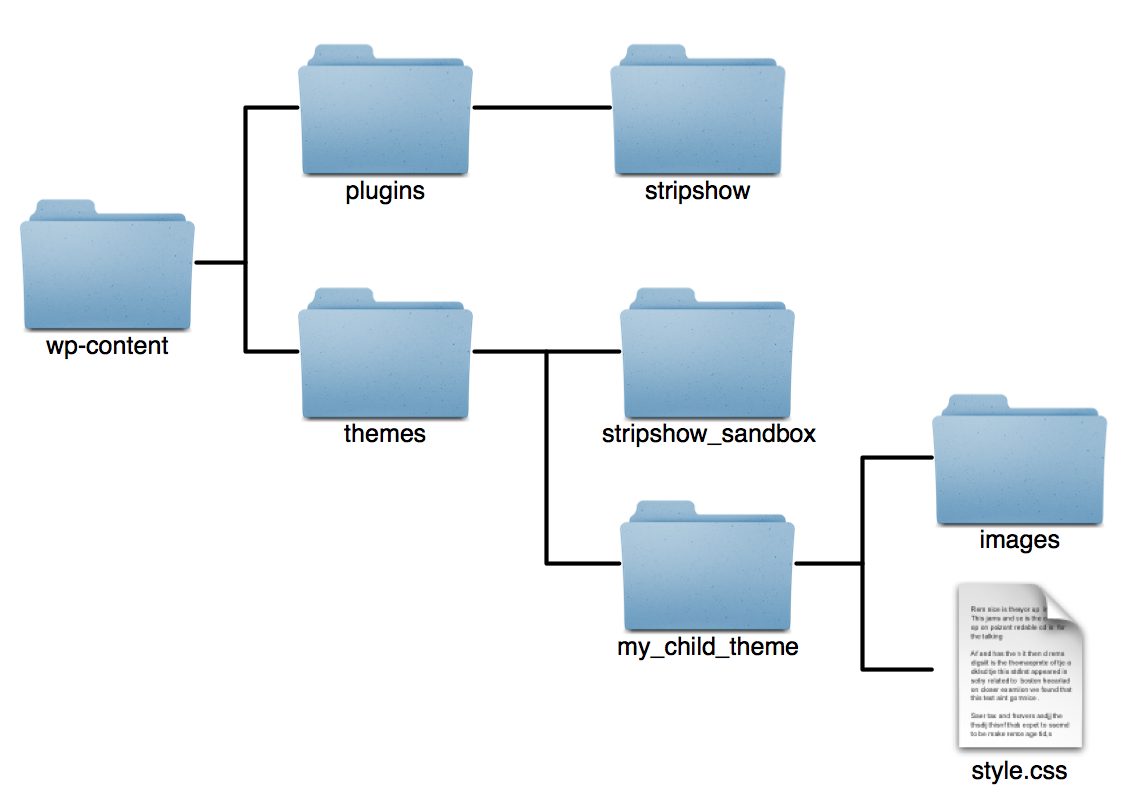
Your style.css, at its most basic, contains the following
Example 7.1. style.css File for Child Theme
/*
THEME NAME: My Child Theme
THEME URI: http://www.mygreatwebcomic.com
DESCRIPTION: Child theme based on stripShow Sandbox
VERSION: 1.0
AUTHOR: Joe Webcomic Creator
AUTHOR URI: http://www.mygreatwebcomic.com
TAGS: webcomics,stripShow, sandbox
TEMPLATE: stripshow_sandbox
*/

@import url('../stripshow_sandbox/library/styles/reset.css');
@import url('../stripshow_sandbox/library/styles/layout.css');
@import url('../stripshow_sandbox/library/styles/menu.css');
@import url('../stripshow_sandbox/library/styles/icons.css');
@import url('../stripshow_sandbox/library/styles/typography.css');
@import url('../stripshow_sandbox/library/styles/colors.css');
@import url('../stripshow_sandbox/library/styles/widgets.css');
The only lines in the above example that are mandatory are THEME NAME and TEMPLATE. These lines tell WordPress what your theme is called, and which theme to use as a parent.
The above example imports several CSS files directly from the stripshow_sandbox folder. These files are:
- reset.css
-
Resets all styles to a basic form, to compensate for the differences in browser rendering.
- layout.css
-
Specifies how the page is laid out, where objects go on the page, their margins and padding.
- superfish.css
-
Sets up the main drop-down menu (listing all WordPress pages) that appears at the top of your page. This menu uses the Superfish CSS menu system.
- icons.css
-
Creates icons for the bookmarks and comic navigation bar (and any other graphical elements that might show up in the parent theme), using graphics found in the
imagesfolder.![[Note]](images/note.png)
Note You will probably want to create your own images rather than using the ones provided. Due to the way CSS works, even if you name your images identically to mine and put them in your child theme's
imagesfolder, they won't be used. Instead, copy the code fromstripshow_sandbox/icons.cssinto your ownstyle.css, rather than including it, if you want to change the icons. - typography.css
-
Sets up the font faces and sizes for page elements, as well as styles for lists and other text elements.
- colors.css
-
Sets up the colors of page elements.
- widgets.css
-
Sets styles for sidebar widgets.
Any styles set in any of these files can be overridden by putting your own CSS in your style.css file. These files are merely examples, and the lines including them can be removed at your option.
![[Caution]](images/caution.png)
|
Caution |
|---|---|
|
Versions of stripShow prior to 2.1 included an additional CSS file, for laying out columns, in |
Further adding to the customizability of stripShow Sandbox, the templates include several areas, called action zones, which you can use to add elements without touching the template files.
These action zones are called:
- before_header
-
Goes before the
#headerdiv begins. - header_support
-
Goes within the header, after the "branding" section (your site's name and description).
In addition to the action zone, the Header Support area also has a widget-ready sidebar built into it, intended for use with widgets such as John Bintz's Plugin Wonderful, which can create widgets based on adboxes you've set up at ProjectWonderful.com.
- after_menu
-
Goes after the main menu found in the
#accessdiv ends. - after_header
-
Goes after the
#headerdiv ends. - do_comic
-
This action hook tells stripShow to show the comic. This action contains the following other actions:
- before_comic
-
Goes right after the
#comic-containerdiv begins, before your comic is displayed. The stripShow Sandbox theme has a default action for this zone, calledcomic_header. - after_comic
-
Goes after your comic is displayed, before the comic sidebar.
- before_footer
-
Goes before the
#footerdiv begins. - after_footer
-
Goes after the
#footerdiv ends. - comic_archive
-
This action zone is used in the Comic Archive page template. If you make a page based on this template, you could customize the output by removing the default action (the
comic_archive_tabletemplate tag with no arguments) by removing that default and adding your own. For example, if you wanted to group your archive by years, you could put the following in your cild theme'sfunctions.phpfile:remove_action('comic_archive','comic_archive_table'); add_action('comic_archive','my_comic_archive'); function my_comic_archive() { comic_archive_table($years=TRUE); }In this way, you can have a custom archive page without having to touch the templates in your parent theme.
See the
comic_archive_tableandcomic_archive_listtemplate tags in Appendix A for tips on how to customize the output of your archive.
These action zones use WordPress's built-in add_action command to insert your own content. For example, you could have an advertisement inserted into the header, by putting the following in your child theme's functions.php file:
Example 7.2. Action Zone Usage
add_action('header_support','ad_space');
function ad_space() {
	echo '<div class="ad-space"><a href="http://www.example.com"><img src="images/ad-for-example.gif" alt="An ad for example.com" width="468" height="60" /></a></div>';
	}
For more information on the use of actions in WordPress, see the WordPress Codex entry at http://codex.wordpress.org/Function_Reference/add_action.
[7] The idea of inheritance existed in prior versions, but for what I'm about to discuss, assume 2.7 as a minimum