Reimagined - A WordPress Admin Theme
Reimagined is a Wordpress Plugin that can help you completely
transform the look and feel of your wordpress admin area
- created: 07/06/2014
- by: Ciaran Belfast
- web:www.roundmedia.co.uk
- email: support@roundmedia.co.uk
Thank you for downloading the reimagined plugin. If you have any questions that are beyond the scope of this help file, please feel free to contact me. Thanks so much!
Introduction
About Round Media
Round Media is a modern and creative design agency based in Belfast, Northern Ireland specializing in PHP Devleopment, Web Design & Development and Mobile Development
We are passionate about all areas of design and development and strive for perfection
Now enough about us, let's delve into the Reimagined Plugin
Description
Reimagined is a WordPress Plugin that can help you create the admin area for Wordpress that you have always dreamed of.
With the Reimagined plugin you can change the appearance of the WordPress Admin area, the WordPress login screen, reorder the dashboard menu and customize the WordPress Admin Bar.
Reimagined Features:
- Sleek Reimagined Admin Design
- Re-Order the Admin Menu
- Custom Admin Menu Dash Icons
- Can also Use WordPress Colour Schemes
- Easily Change WordPress Admin Background
- Easily Change the WordPress Login Screen Background
- Easily Change the Wordpress Login Screen Logo
- Change the WordPress Admin Bar logo, site name and links
- Easily Remove the WordPress Admin Bar Quicklinks
- Change the default WordPress Footer Copyright and Version
- Looks great on any device!
Installation
The installation of the Reimagined Plugin is pretty easy.
If you follow the steps below you'll be up and running in a matter of minutes
-
STEP 1 - Install Plugin
Go To Your WordPress Dashboard
Go To Plugins
Add New
Choose The Upload Tab
Upload The reimagined.zip file
Click Activate
And You Are Done - Simple Eh?
Customizing The Admin Area
- From WordPress Admin Area Go To Appearance.
-
Click On Reimagined.
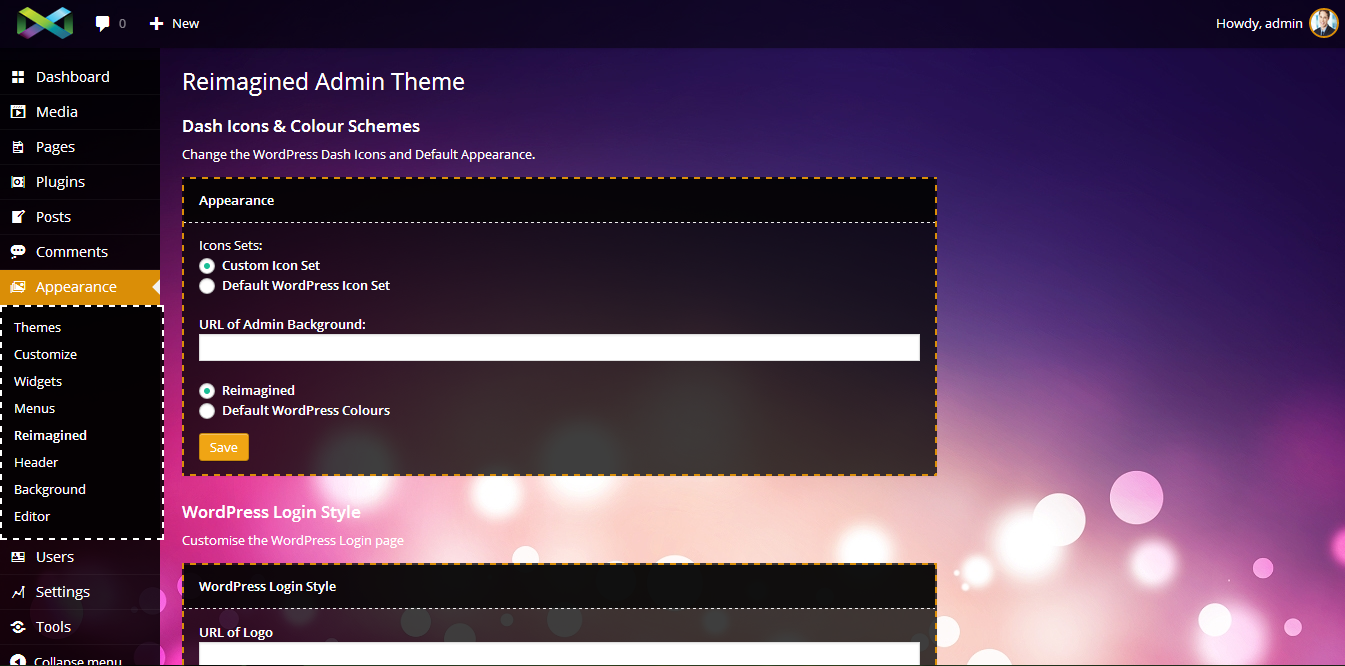
Reorder Admin Menu

Admin Menu Dashicons

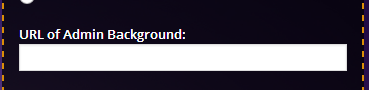
Admin Screen Background Image
Admin Area Style

Login Screen Logo

Login Screen Background

Admin Bar Logo

Admin Bar Link

Admin Bar - Site Name

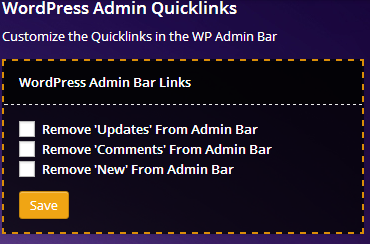
Admin Bar Quicklinks
Footer Copyright

Footer Version Number