# Tools
This tab provides tools, tests and diagnostics that are enabled when the Chatbot Diagnostics are enabled on the `Messages` tab.
There are three tools currently available:
- Options Exporter
- Manage Error Logs
- Manage Widget Access Logs
Each tool is briefly described below.
---
## Options Exporter
Export the Chatbot options to a file. This excludes sensitive information such as your API key.
 ### Steps:
1. **Download Options Data**:
- Use the `Download Options Data` button to retrieve the chatbot options and download the file.
---
## Manage Error Logs:
The Manage Error Logs section provides direct access to the chatbot's unique errors. If you're experiencing a problem with the chatbot, please check the error logs to see if you can determine what might be the problem.
### Steps:
1. **Download Options Data**:
- Use the `Download Options Data` button to retrieve the chatbot options and download the file.
---
## Manage Error Logs:
The Manage Error Logs section provides direct access to the chatbot's unique errors. If you're experiencing a problem with the chatbot, please check the error logs to see if you can determine what might be the problem.
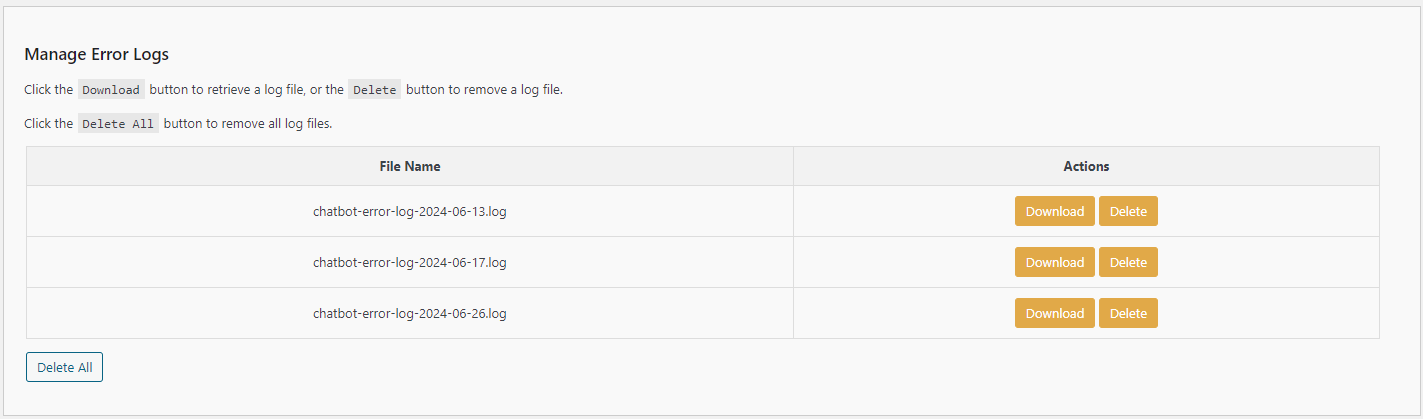 ## Example Error Log
 ### Steps:
1. **Download**
- Choose `Download` to retrieve and save locally the selected error log.
2. **Delete**
- Choose `Delete` to delete the selected error log.
3. **Delete All**
- Chose `Delete All` to delete ALL error logs listed.
---
## Manage Widget Access Logs:
The Manage Widget Access Logs section provides direct access to the chatbot's widget usage by remote sites. If you've enabled access via a remote widget, and enabled logging to the widget, these logs will record allowed and disallowed access to whitelisted domains and OpenAI Assistants.
### Steps:
1. **Download**
- Choose `Download` to retrieve and save locally the selected error log.
2. **Delete**
- Choose `Delete` to delete the selected error log.
3. **Delete All**
- Chose `Delete All` to delete ALL error logs listed.
---
## Manage Widget Access Logs:
The Manage Widget Access Logs section provides direct access to the chatbot's widget usage by remote sites. If you've enabled access via a remote widget, and enabled logging to the widget, these logs will record allowed and disallowed access to whitelisted domains and OpenAI Assistants.
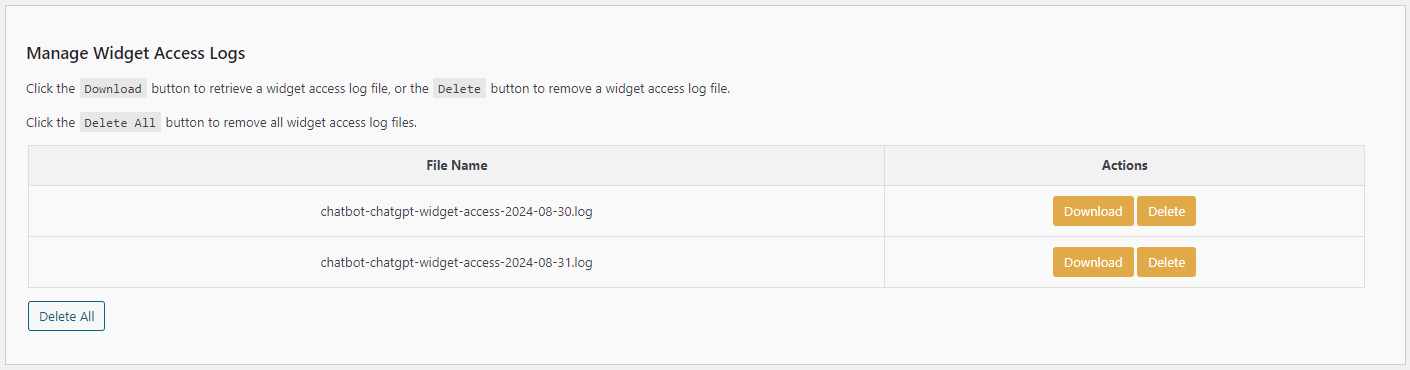 ## Example Widget Log
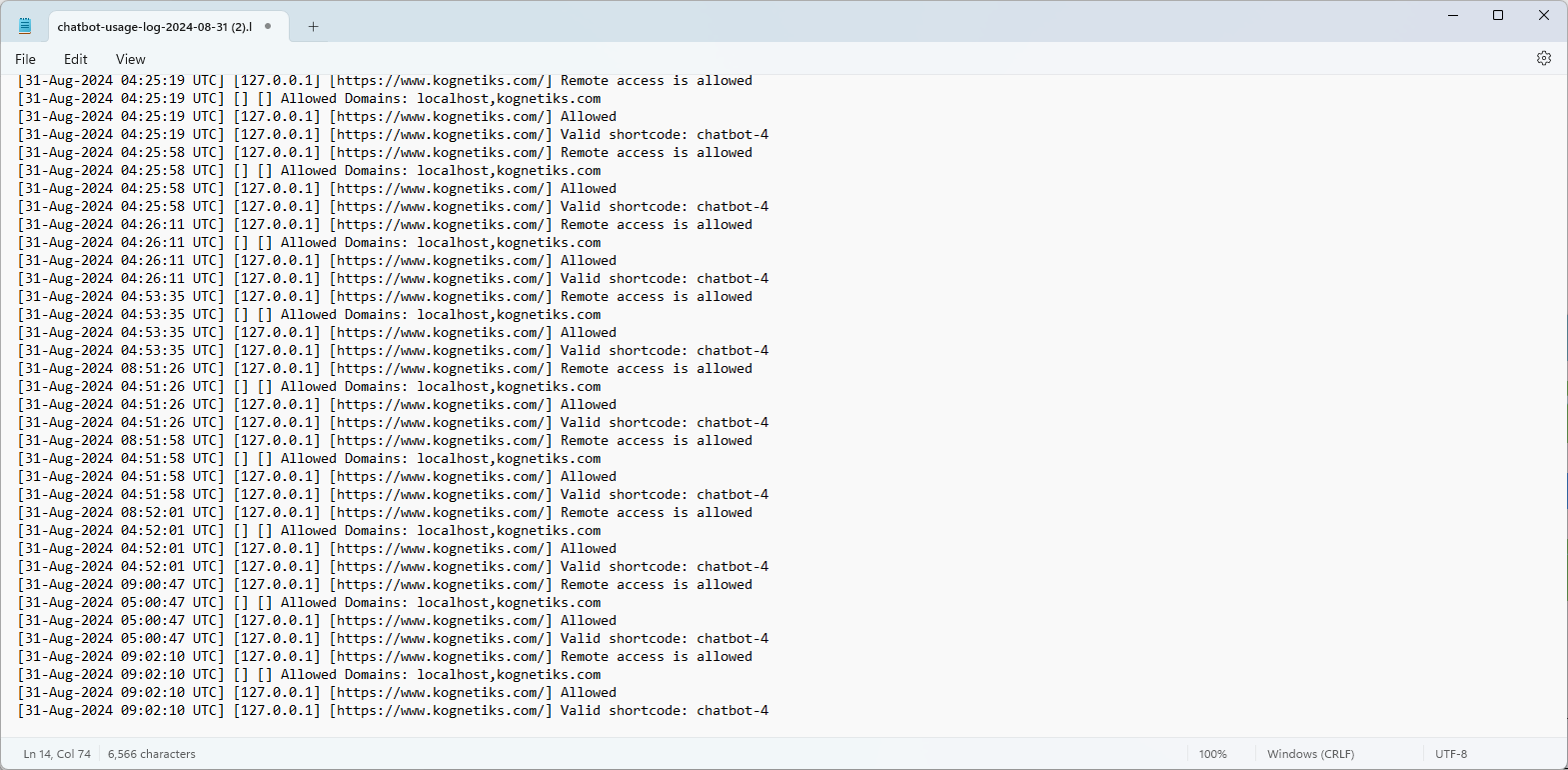 ### Steps:
1. **Download**
- Choose `Download` to retrieve and save locally the selected widget access log.
2. **Delete**
- Choose `Delete` to delete the selected widget access error log.
3. **Delete All**
- Chose `Delete All` to delete ALL widget access logs listed.
---
- **[Back to the Overview](/overview.md)**
### Steps:
1. **Download**
- Choose `Download` to retrieve and save locally the selected widget access log.
2. **Delete**
- Choose `Delete` to delete the selected widget access error log.
3. **Delete All**
- Chose `Delete All` to delete ALL widget access logs listed.
---
- **[Back to the Overview](/overview.md)**